Viral Mahashivratri Ai Prompt Photo Editing On Google Gemini

Advertisement
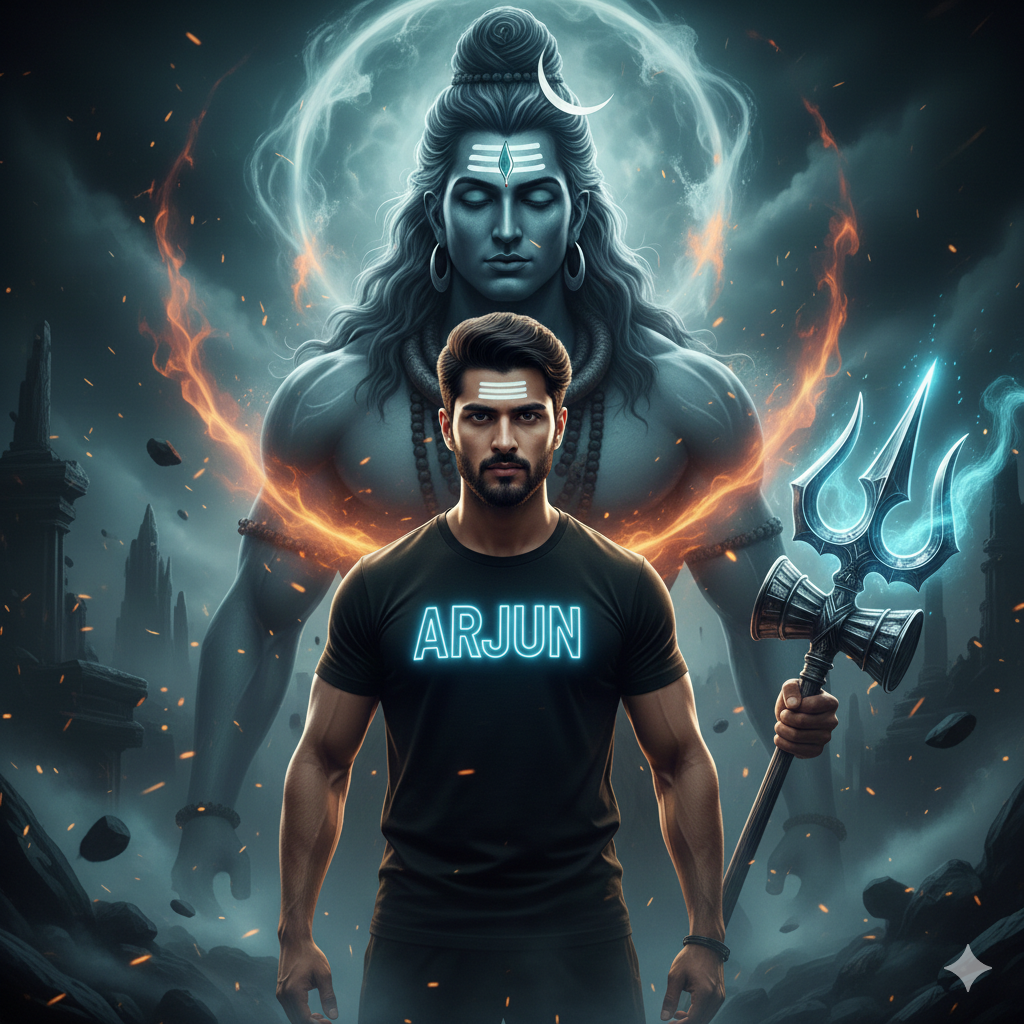
Viral Mahashivratri Ai Prompt Photo Editing On Google Gemini - AI Generated Image
AI Prompt Used

Use the uploaded photo as the PRIMARY and ONLY face reference for the person.The face must match 100% exactly — same identity, same facial structure, skin tone, eyes, nose, lips, hairline, beard/facial hair, and expression.Do NOT change the identity.Do NOT stylize the face.The face must look fully realistic and photographic — NO anime, NO cartoon, NO illustration, NO AI-stylized face. Scene Description:A young man standing confidently in the center, facing forward.He is wearing a black t-shirt with his name glowing in neon blue text on the chest.He is holding a metallic trident (Trishul) in his right hand.His expression is serious, powerful, and fearless. Divine Presence:Behind him appears a massive, dark divine form of Lord Shiva as a guardian.– Deep ash/blue skin tone– Intense yet calm divine eyes– Long flowing hair– Crescent moon in the hair– Tripundra (three white lines) with glowing tilak on the forehead– Rudraksha beads– Serpent elements and divine ornamentsLord Shiva looks larger than life, spiritual, and powerful. Atmosphere & Effects:– Dark mystical background– Blue smoke and divine energy waves– Glowing embers and particles floating in the air– Strong spiritual aura surrounding both the man and Lord Shiva– Cinematic contrast between blue divine light and dark shadows Lighting & Style:– Ultra-cinematic lighting– Strong rim light and backlight– Hyper-realistic textures– Natural human skin texture– No face smoothing– High contrast dramatic lighting– 4K Ultra HD resolution– Sharp focus– Dark fantasy + spiritual realism style Strict Rules:– Face must be realistic and photographic– NO anime style– NO cartoon style– NO illustration face– No exaggerated eyes or skin– No identity change– No artificial or plastic look Final Output:A powerful, ultra-realistic cinematic spiritual portrait showing a man empowered and protected by Lord Shiva with intense divine energy.
Advertisement

Discover Superior Results With The Help Following Ai Option

Google Gemini AI has emerged as the go-to solution for transforming everyday content into visually striking digital masterpieces. Whether you want professional-grade photography, realistic portraits, or cinematic scenes, Google Gemini AI's innovative prompts enable you to control lighting, composition, camera settings, and mood with AI-powered precision. This curated collection of prompts is tailored for photographers, content creators, and visual storytellers who want more than just basic AI generation; it's for those eager to enhance photographic skills, create professional portfolios, and produce stunning visual content using Gemini AI's advanced capabilities. Every prompt incorporates current visual trends including viral, mahashivratri, prompt, blending professional photography principles with AI-enhanced creativity. With Gemini AI's powerful generation engine, straightforward inputs can become professional-quality outputs that reflect precision, style, and modern aesthetics.

How To Edit Your Photo Using This Prompt

1
Access the Platform: Access Google Gemini AI through the browser interface, mobile application, or integrated Google Workspace tools.
2
Prepare Your Input: Upload your photo on respective AI . Ensure you have specific lighting, composition, and style requirements in mind.
3
Use Your Prompt: Input your prompt directly into the generation interface. Try: " Use the uploaded photo as the PRIMARY and ONLY face reference for the person.The face must match 1". Use descriptive language and be specific about your desired outcome.
4
Customize Details: Define camera settings, lighting conditions, focal length, and photographic style. Mention specific techniques or equipment if relevant.
5
Generate and Refine: Initiate generation and monitor the progress. The platform will provide multiple options that you can refine or regenerate as needed.
6
Finalize and Export: Choose the best result and export in your desired format and resolution. The platform provides options for different applications and platforms.

Expert Tips for Best Results

  • Define Lighting Conditions: Specify 'golden hour', 'studio lighting', 'natural light', or 'dramatic shadows' for mood control.
  • Mention Camera Equipment: Reference specific cameras, lenses, or photographic equipment for authentic results.
  • Set the Scene: Describe backgrounds, environments, and atmospheric conditions in detail.
  • Control Depth of Field: Use terms like 'shallow depth of field', 'bokeh background', or 'everything in focus'.
  • Specify Photo Style: Mention 'portrait photography', 'landscape', 'street photography', or 'commercial shoot'.
  • Include Technical Details: Reference ISO, aperture, shutter speed, or film types for realistic rendering.
  • Consider Post-Processing: Mention desired editing styles like 'vintage filter', 'high contrast', or 'natural colors'.

Recommended AI Tools

ChatGPT

Superior at understanding photographic terms and realistic rendering

Google Gemini

Strong research capabilities and factual accuracy

Stable Diffusion

Best for photorealistic outputs with custom models

Midjourney

Excellent for artistic photography styles and compositions

Usage Tips

  • Specify camera types and lenses for different photographic effects
  • Use lighting terms like 'golden hour' or 'studio lighting'
  • Experiment with different film types and processing styles
  • Add compositional rules like 'rule of thirds' explicitly
  • Include depth of field requirements for focus control

Optimization Tips

  • Use specific, descriptive language in your prompts for better AI understanding
  • Include relevant keywords like 'viral', 'mahashivratri' for targeted results
  • Experiment with different parameter combinations to optimize outputs
  • Save successful prompt variations for future reference and refinement
  • Stay updated with the latest AI model capabilities and limitations
Advertisement

You Might Like:

Quick Unique Best Match
Loading ai editing prompt...