Viral Holi with Krishna Ai Photo Editing Prompts Try On Bing Image Creator

Advertisement
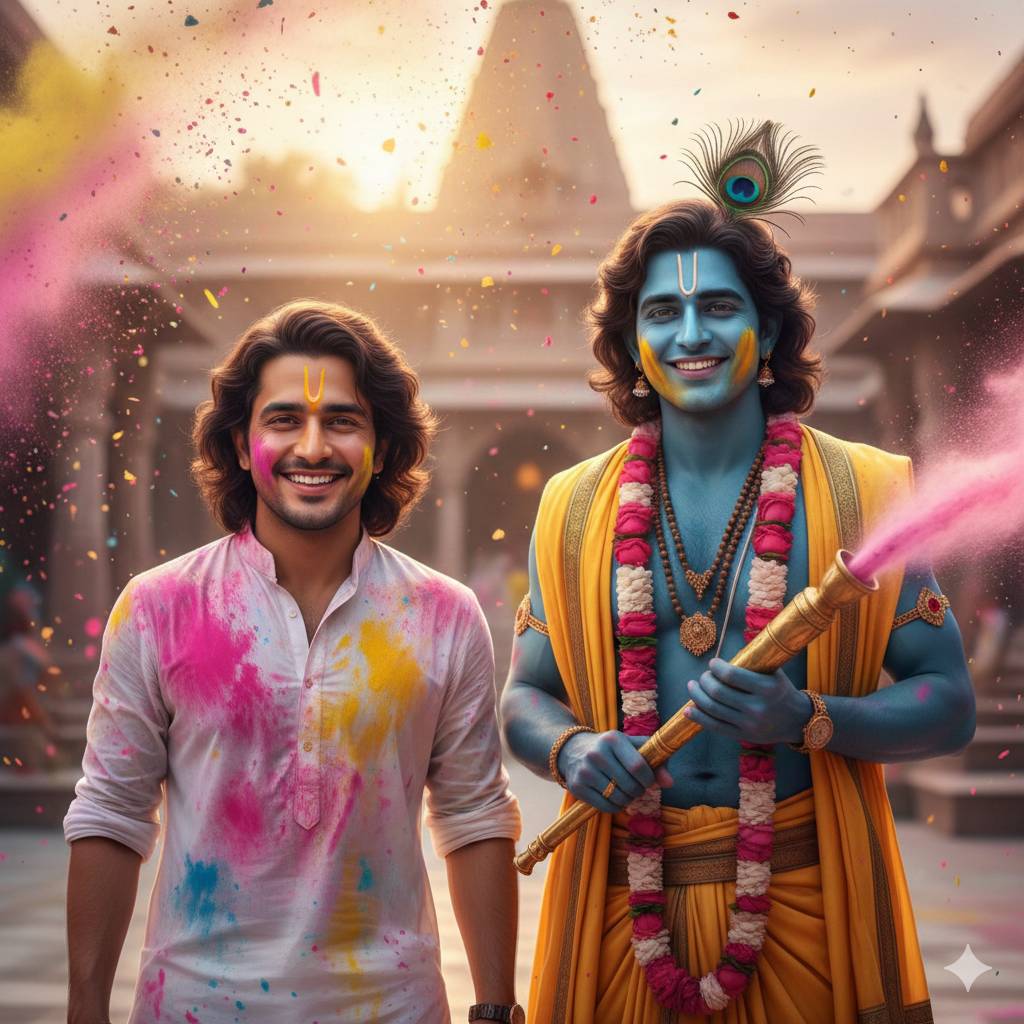
Viral Holi with Krishna Ai Photo Editing Prompts Try On Bing Image Creator - AI Generated Image
AI Prompt Used

Use the uploaded reference image as the exact face reference. Preserve 100% identical facial features - same eyes, same nose shape, same lips, same jawline, same hairstyle, same skin tone, same facial proportions. Do NOT modify identity. Do NOT beautify, reshape, enhance, stylize, or alter the face in any way. Face must match perfectly with high realism and natural skin texture. Ultra-realistic cinematic vertical portrait of the person from the reference image playing Holi with Lord Krishna in a beautiful Vrindavan temple courtyard. The person is joyfully smiling, wearing a slightly wet white kurta (for boys) / white kurti or saree (for girls) with natural pink, yellow, and blue gulal stains. Lord Krishna standing beside them with divine blue skin tone, detailed peacock feather crown, yellow silk dhoti flowing naturally, floral garland around neck, holding a golden pichkari spraying vibrant color powder into the air. Vibrant gulal particles frozen mid-air, dynamic motion, soft golden sunset lighting, volumetric sun rays passing through floating powder, shallow depth of field, 85mm lens portrait photography, ultra-detailed skin texture, natural pores, realistic fabric folds, cinematic HDR color grading, devotional emotional atmosphere, hyper-realistic photography, 8K resolution, masterpiece, symmetrical composition, vertical frame, subject centered. Negative Prompt (Very Important) face change, different person, altered facial structure, beauty filter, smooth skin filter, cartoon face, anime style, stylized face, extra fingers, extra hands, distorted anatomy, blurry face, low resolution, overexposed, underexposed, unrealistic skin, plastic skin, artificial look, CGI look, deformed face, mutated features, bad proportions, asymmetrical face, duplicate face please make overall natural and real
Advertisement

Discover Superior Results With The Help Following Ai Option

ChatGPT has become the industry standard for prompt understanding and realistic image generation with exceptional attention to detail. Whether you want professional-grade photography, realistic portraits, or cinematic scenes, ChatGPT's innovative prompts enable you to control lighting, composition, camera settings, and mood with AI-powered precision. This curated collection of prompts is tailored for photographers, content creators, and visual storytellers who want more than just basic AI generation; it's for those eager to enhance photographic skills, create professional portfolios, and produce stunning visual content using DALL-E 3's advanced capabilities. Every prompt incorporates current visual trends including viral, holi, krishna, blending professional photography principles with AI-enhanced creativity. Using DALL-E 3's sophisticated understanding capabilities, basic descriptions transform into photorealistic images that demonstrate exceptional detail and coherence.

How To Edit Your Photo Using This Prompt

1
Access the Platform: Open ChatGPT with DALL-E integration or access DALL-E directly through the OpenAI platform. Use the web interface or mobile application.
2
Prepare Your Input: Upload your photo on respective AI . Ensure you have specific lighting, composition, and style requirements in mind.
3
Use Your Prompt: Enter your prompt in the generation field. Use: "Use the uploaded reference image as the exact face reference. Preserve 100% identical facial feature". Specify style, quality, and any specific requirements in natural language.
4
Customize Details: Define camera settings, lighting conditions, focal length, and photographic style. Mention specific techniques or equipment if relevant.
5
Generate and Refine: Click the generate button and review the created images. You can request variations or make specific edits to the generated content.
6
Finalize and Export: Select your preferred output and download in high resolution. The platform offers different quality settings for various use cases.

Expert Tips for Best Results

  • Define Lighting Conditions: Specify 'golden hour', 'studio lighting', 'natural light', or 'dramatic shadows' for mood control.
  • Mention Camera Equipment: Reference specific cameras, lenses, or photographic equipment for authentic results.
  • Set the Scene: Describe backgrounds, environments, and atmospheric conditions in detail.
  • Control Depth of Field: Use terms like 'shallow depth of field', 'bokeh background', or 'everything in focus'.
  • Specify Photo Style: Mention 'portrait photography', 'landscape', 'street photography', or 'commercial shoot'.
  • Include Technical Details: Reference ISO, aperture, shutter speed, or film types for realistic rendering.
  • Consider Post-Processing: Mention desired editing styles like 'vintage filter', 'high contrast', or 'natural colors'.

Recommended AI Tools

ChatGPT

Superior at understanding photographic terms and realistic rendering

Google Gemini

Strong research capabilities and factual accuracy

Stable Diffusion

Best for photorealistic outputs with custom models

Midjourney

Excellent for artistic photography styles and compositions

Usage Tips

  • Specify camera types and lenses for different photographic effects
  • Use lighting terms like 'golden hour' or 'studio lighting'
  • Experiment with different film types and processing styles
  • Add compositional rules like 'rule of thirds' explicitly
  • Include depth of field requirements for focus control

Optimization Tips

  • Use specific, descriptive language in your prompts for better AI understanding
  • Include relevant keywords like 'viral', 'holi' for targeted results
  • Experiment with different parameter combinations to optimize outputs
  • Save successful prompt variations for future reference and refinement
  • Stay updated with the latest AI model capabilities and limitations
Advertisement

You Might Like:

Quick Unique Best Match
Loading ai editing prompt...